BNZ statement to Excel
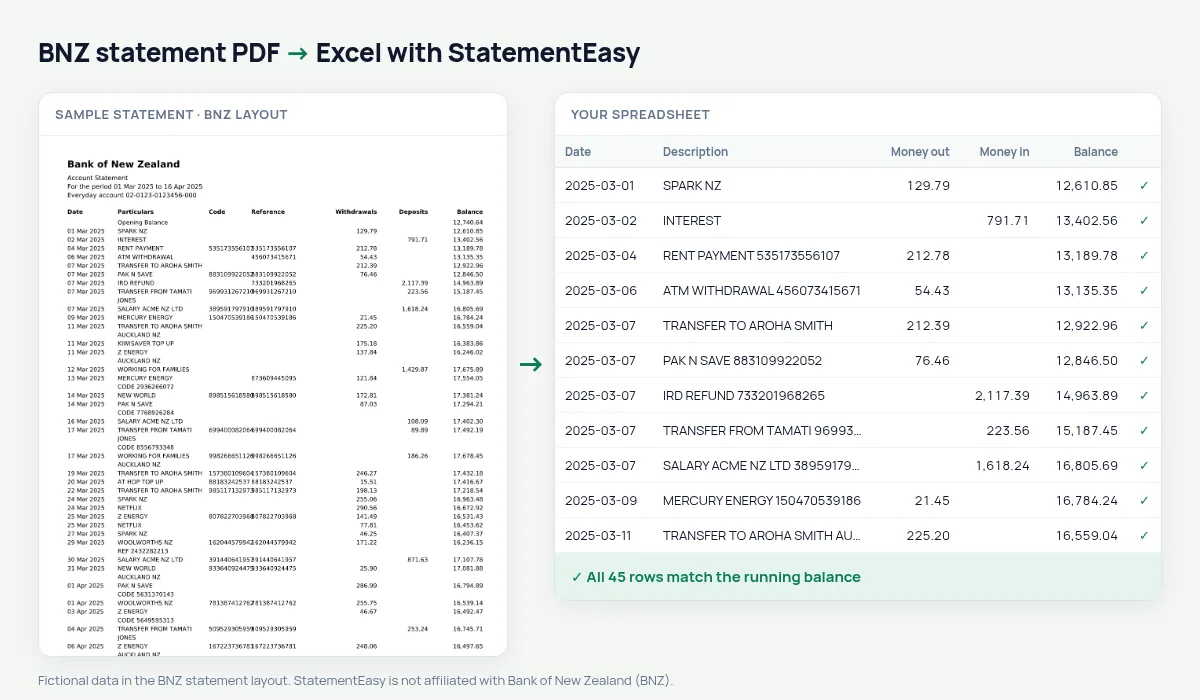
Your BNZ statement as a spreadsheet, with Particulars, Code and Reference kept.
- Checked every row against your balance
- Private read on your device first
- Excel & CSV plus QuickBooks, Xero and Quicken files
- Free no sign-up, no page limits
The Bank of New Zealand was founded in 1861 and is owned by National Australia Bank. Its statement keeps the three fields of a New Zealand payment — Particulars, Code and Reference — in their own columns, next to Withdrawals, Deposits and Balance.
StatementEasy keeps all three together in the description so nothing is lost, reads the amounts and checks every balance.
Download your BNZ statement
- Sign in to BNZ Internet Banking or the BNZ app.
- Open the account, then Statements.
- Pick the period and download the PDF.
- Drop it into the converter above. Excel, CSV, OFX, QIF or Xero and QuickBooks files in seconds.
BNZ columns in your sheet
| On the statement | In your sheet |
|---|---|
| Particulars | Description |
| Code | Part of the description |
| Reference | Part of the description |
| Withdrawals | Money out |
| Deposits | Money in |
Particulars, Code and Reference
When someone pays you in New Zealand they can fill in three short fields. Invoices, rent and club fees are often matched by them.
Because they sit in the description, you can search or filter for an invoice number or a tenant’s reference and find the payment straight away.
For landlords
Tenants usually put their name or address in the Reference. Filter for it and the Monthly sheet shows whether rent came in each week or month.
An example line
On the PDF: 05 Mar 2025 ACME NZ LTD SALARY MARCH 4,250.00 6,812.40. In your sheet: description “ACME NZ LTD SALARY MARCH”, money in 4,250.00.
Last tested October 2026. StatementEasy is not affiliated with Bank of New Zealand (BNZ).
Questions
Can I split Code and Reference into their own columns?
They stay in the description; you can add a column and copy them if you need to.
Business accounts?
Yes.
How do I download a BNZ statement?
In BNZ Internet Banking or the app, choose the account, then Statements, pick the period and download the PDF.
Do BNZ statements cost anything?
Downloading e-statements yourself is normally free; ask BNZ about printed or posted statements.
Is my statement uploaded?
Your browser reads the PDF first, on your device. Only if it cannot read it is the file read on our server, and deleted right after.
Is StatementEasy made by BNZ?
No. StatementEasy is an independent tool and is not affiliated with Bank of New Zealand (BNZ).
Your next statement, in a spreadsheet
Free, no limits. No sign-up.