M-PESA statement to Excel
Turn your M-PESA statement into a spreadsheet: every send, pay bill, buy goods and deposit as a row, with the balance after it checked.
- Checked every row against your balance
- Private read on your device first
- Excel & CSV plus QuickBooks, Xero and Quicken files
- Free no sign-up, no page limits
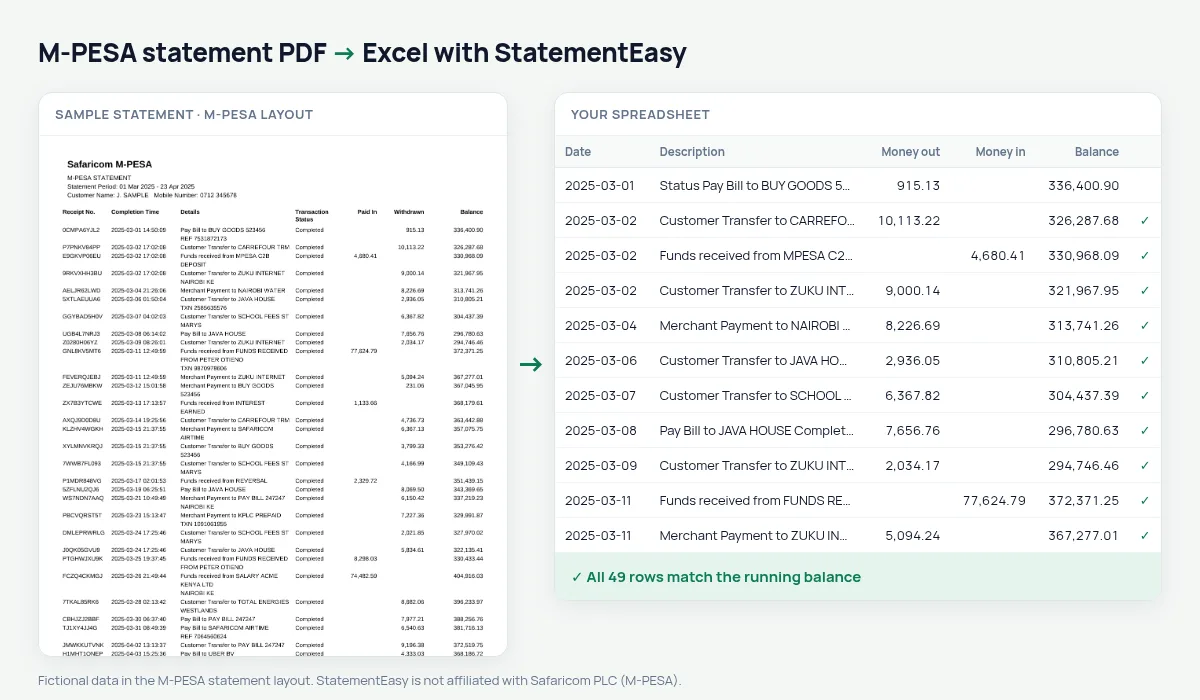
An M-PESA statement lists Receipt No., Completion Time, Details, Transaction Status, Paid In, Withdrawn and Balance. Each row starts with a receipt code such as SC51ABC123 and the date comes with the time — 2025-03-05 14:23:11. Many converters read the receipt code as part of the date or lose the row. StatementEasy recognises the code, reads the date, keeps the details and checks every balance.
Download your M-PESA statement
- Open the M-PESA app, or dial *334#.
- Go to My Account, then M-PESA Statement. Choose the period.
- Receive the PDF by email. It is usually locked with a code sent by SMS.
- Drop the PDF here and type the code if asked.
M-PESA columns in your sheet
| On the M-PESA statement | In your sheet |
|---|---|
| SC51ABC123 | Recognised as the receipt, not a date or amount |
| 2025-03-05 14:23:11 | Date 2025-03-05 |
| Details | Description |
| Paid In / Withdrawn | Money in / money out |
| Balance | Checked on every row |
M-PESA statements for a loan
Banks, SACCOs and digital lenders often ask for six months of M-PESA statements to see your income and spending. Convert them and open the Monthly sheet for money in and out per month, and Insights for regular income and the largest deposits — the same things the lender looks at.
Track a business or a chama
Small businesses and chamas run on M-PESA. In the spreadsheet you can filter by paybill or by name, total contributions per member, and export CSV for your records — far easier than scrolling through the PDF.
Fuliza, Lipa na M-PESA and agents
M-PESA statements mix Customer Transfers, Pay Bill and Buy Goods (Lipa na M-PESA) payments, agent deposits and withdrawals, and Fuliza overdraft lines. The Details column keeps each of them as written, so you can filter one kind of transaction and total it for the month.
Last tested October 2026. StatementEasy is not affiliated with Safaricom PLC (M-PESA).
Questions
My M-PESA statement is password-protected. What do I do?
Drop the PDF and type the code Safaricom sent you; it is used in your browser to open the file.
Is the transaction time kept?
The date is used for each row; the time is not needed for the totals and is left out.
Does it work with M-PESA business (till or paybill) statements?
Business statements are read by the same rules; the balance check on your file shows whether every line was found.
Is my statement uploaded?
Your browser reads the PDF first. Only if it cannot is the file read on our server, and deleted after reading.
Is StatementEasy made by M-PESA?
No. StatementEasy is an independent tool and is not affiliated with Safaricom PLC (M-PESA).
Your next statement, in a spreadsheet
Free, no limits. No sign-up.